Select command

Select Rebar by Parameter
Select the bars. Skip the schedule.
Choose a parameter, rule, and value without creating or changing a schedule. Search the current view, the whole model, or just the bars you have already selected.
What you can do
- Find bars by a rebar parameter
- Find bars matching an existing bar
- Find bars longer than a chosen length
- Filter within a selection
- Spot single bars in area reinforcement
- And more...
Quickly find the bars you need.
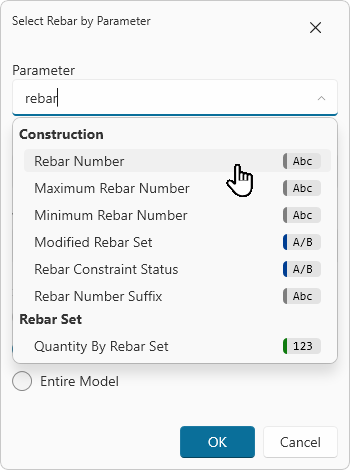
Filter by any rebar parameter
Search the parameter list, which is grouped and sorted like Revit's Properties palette. Badges identify each parameter's value type (text, number, or yes/no). The command supports built-in, shared, and project parameters for both instances and types.
-
Step 1Choose the parameter, rule and value
-
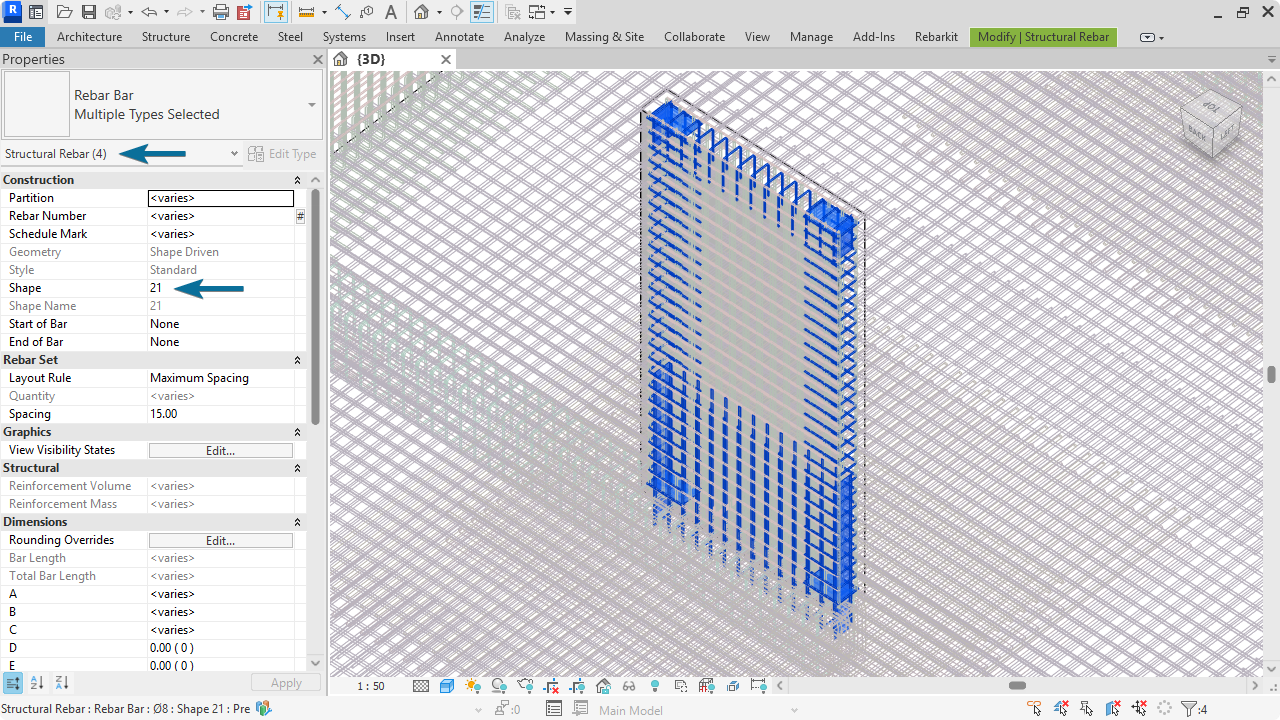
Step 2Matching bars are selected in Revit
Type less, go faster
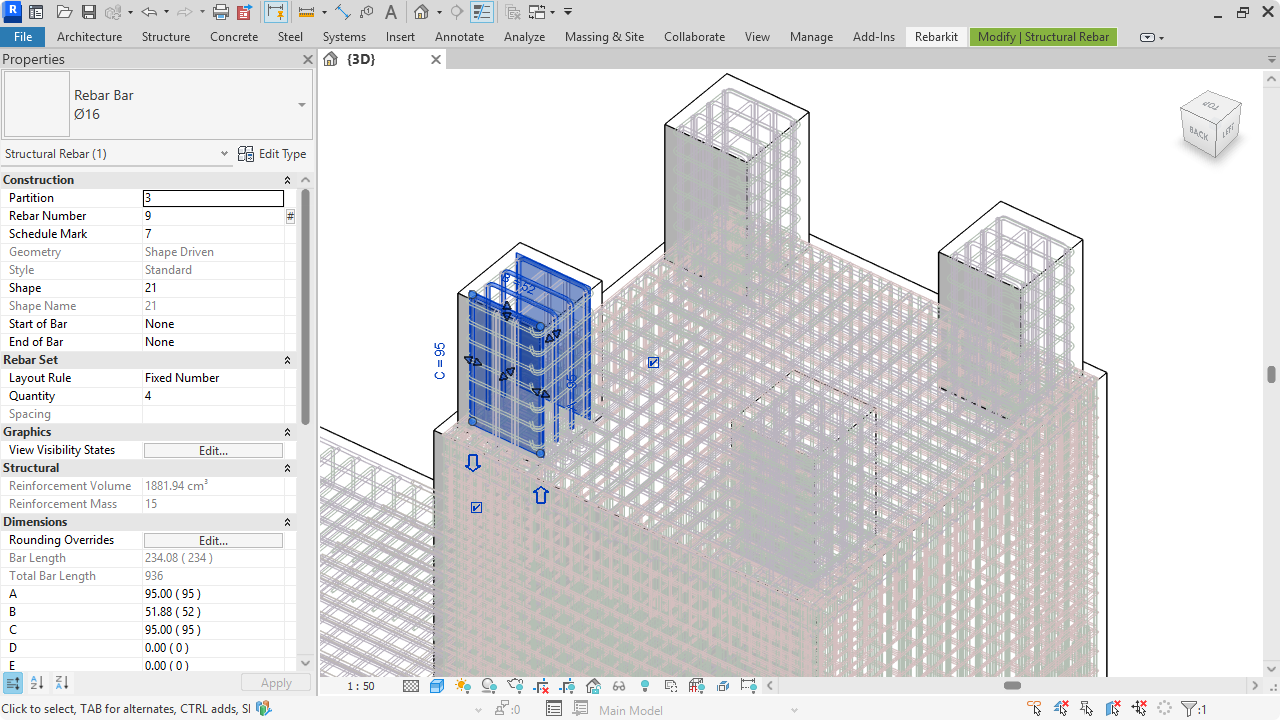
Select similar
-
Step 1Select a rebar before executing the command
-
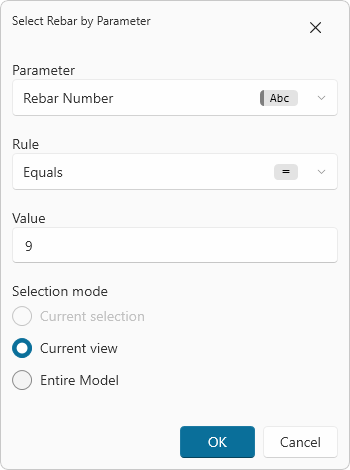
Step 2Its parameter values are filled in
-
Step 3Rebar with the same parameter values are selected
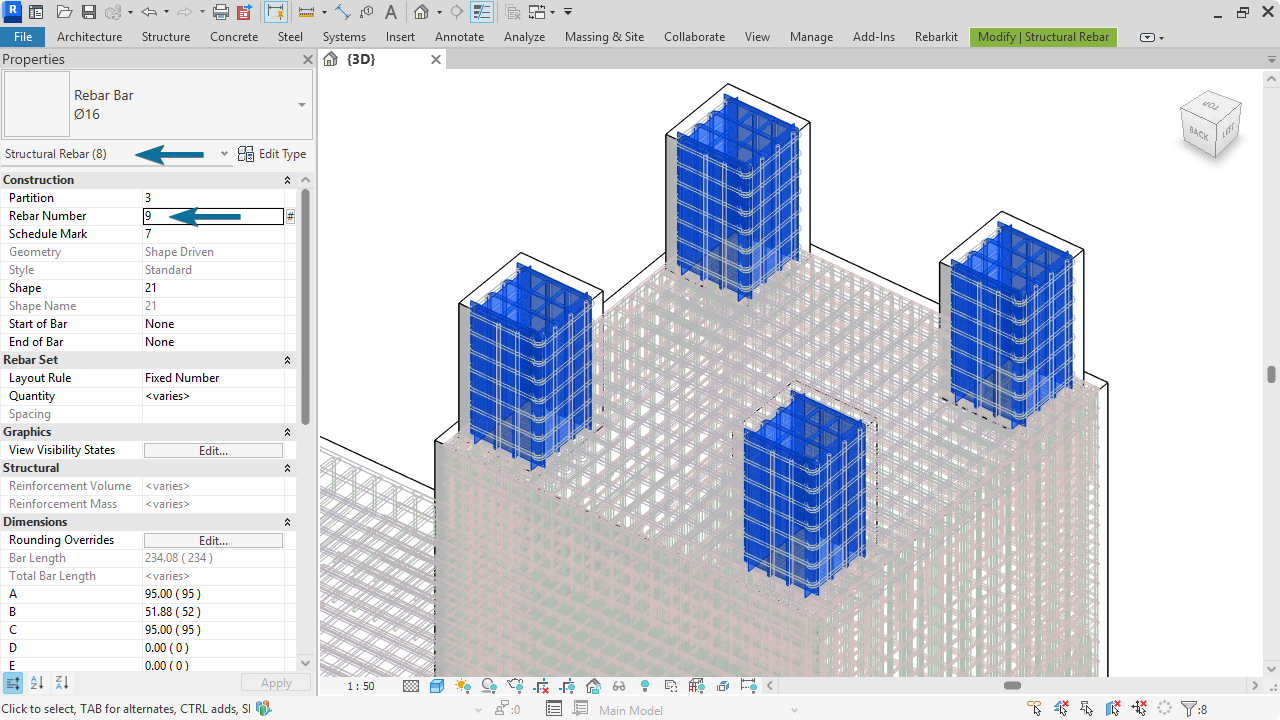
Find bars that exceed a chosen length.
Use comparison rules for numeric values
-
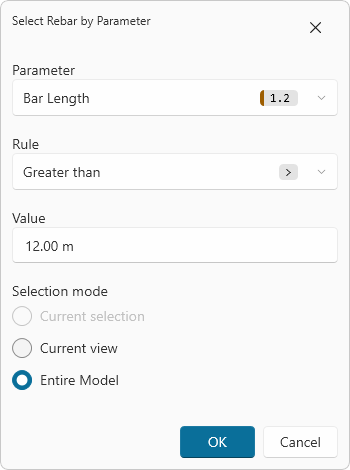
Step 1Filter by bar length
Choose Bar Length, set the rule to Greater than, and enter a length threshold.
-
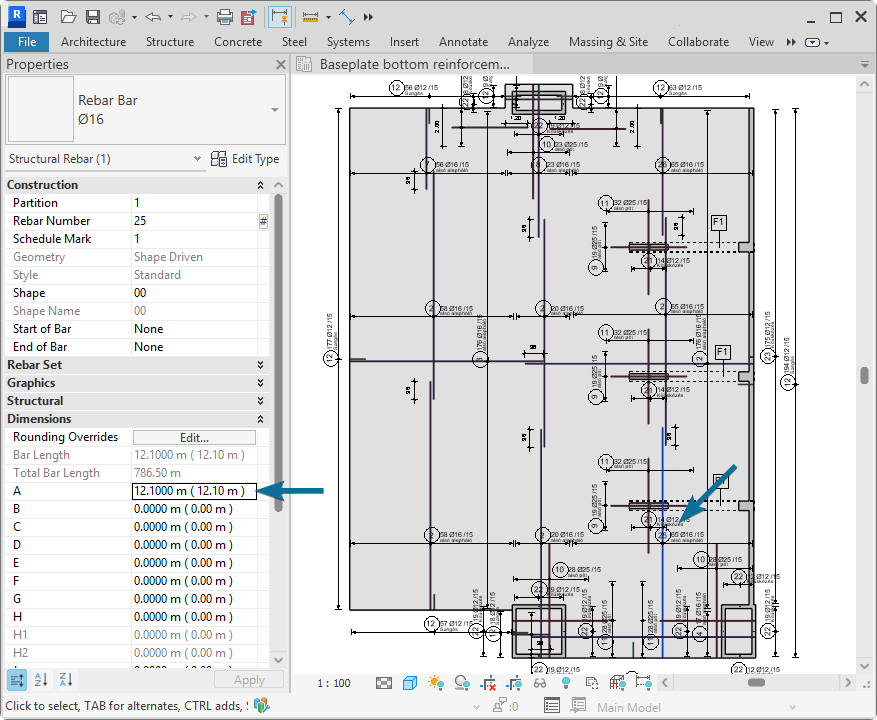
Step 2Review bars over the threshold
The 12.100 m bar is selected because it exceeds the 12.00 m threshold.
Combine selections
Search inside the currently selected elements
-
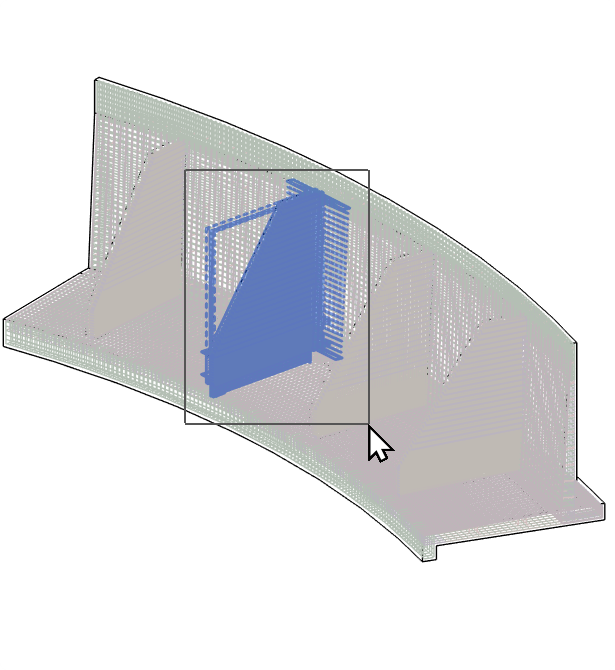
Step 1Preselect the area
Select the bars in the part of the model you want to search.
-
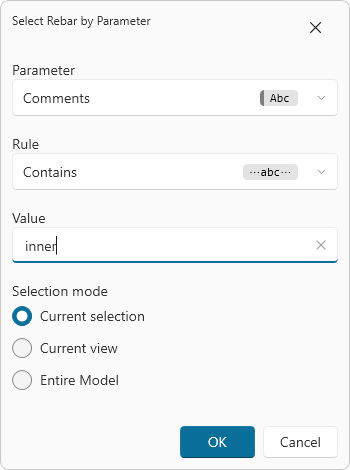
Step 2Filter the current selection
Choose Comments, set the rule to Contains, and enter "inner".
-
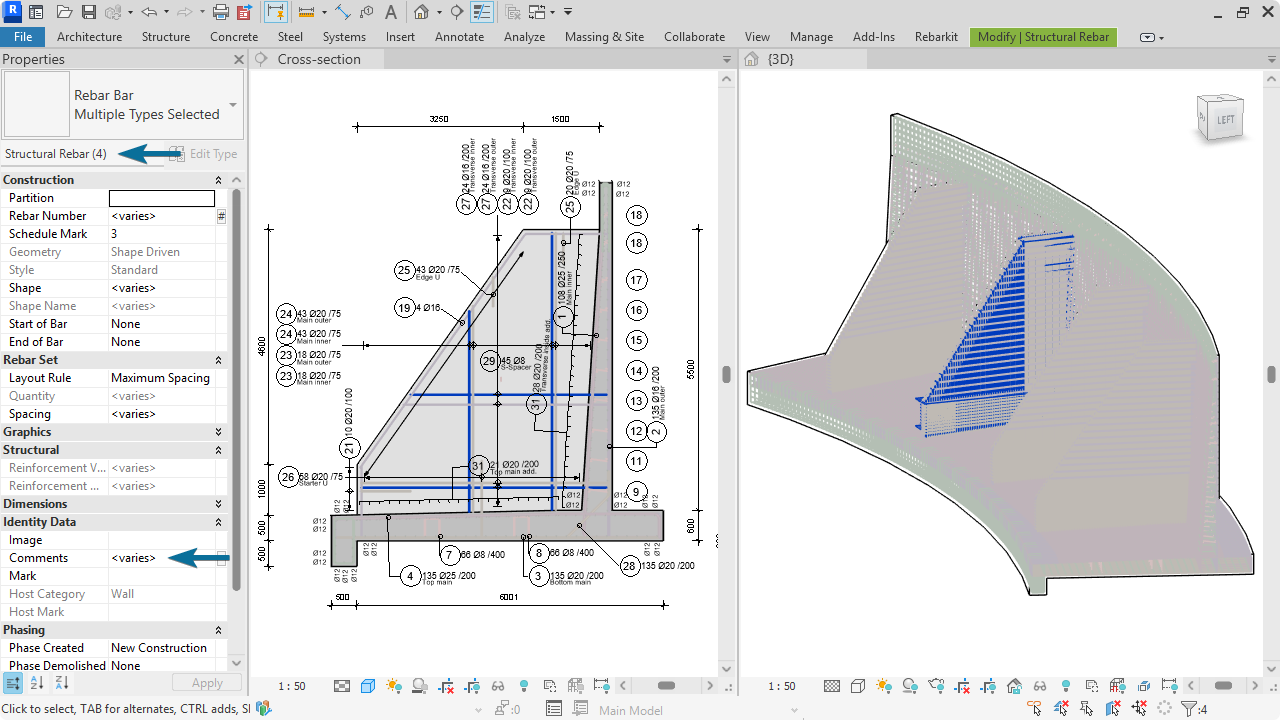
Step 3Keep only matching bars
Only bars matching the text filter remain selected in that area.
Spot single bars in area reinforcement.
Select by layout rule
Complex boundaries and openings can leave individual bars. Find them for review, then decide whether a simpler layout would be easier to execute.
-
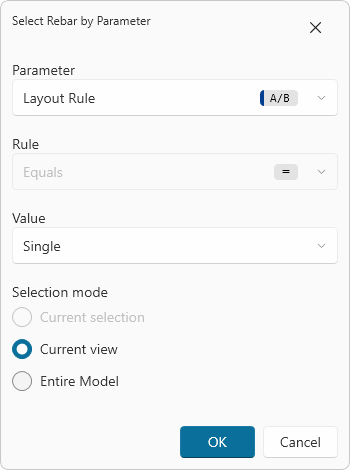
Step 1Filter for single bars
Choose Layout Rule, Equals, and Single in the current view.
-
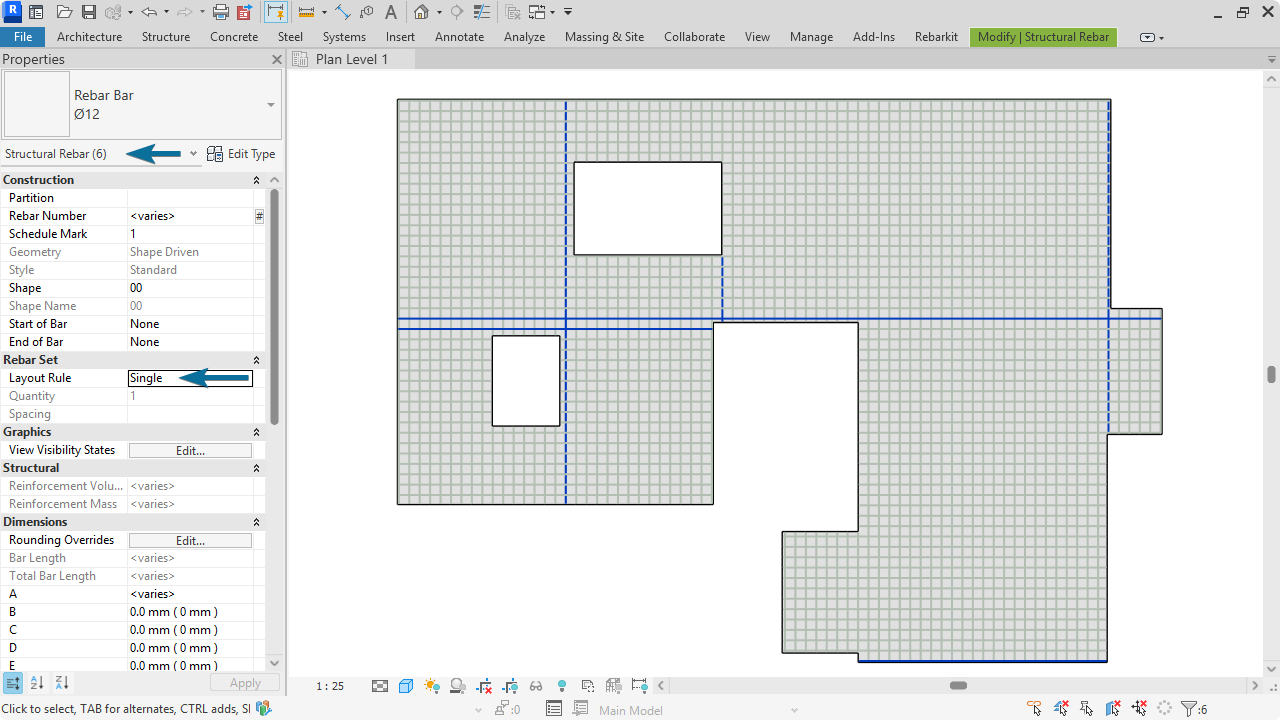
Step 2Review the selected bars
Inspect single bars around area boundaries and openings to decide whether the reinforcement layout could be simplified.
A more direct selection
In a recorded comparison, selection using an existing Revit schedule took about 20 seconds; Rebarkit took about 10 seconds. Rebarkit selects bars without creating or changing a schedule. (These timings describe one example, not a guaranteed saving for every selection.)
Revit schedule workflow
Watch the Revit workflow on YouTube
The Revit schedule already existed. Timing starts with editing its fields, includes adding the field and filter, and ends with selection in the schedule.
Rebarkit
Watch the Rebarkit workflow on YouTube
Rebarkit timing includes starting the command, choosing the parameter, value and selection scope, and clicking OK.
Small savings add up
When you're detailing rebar full time, finding the right bars is part of your daily routine. Saving a few seconds each time can give you back around half an hour a month from this command alone.
10 selections per day × 20 rebar-working days × 10 seconds saved = 2,000 seconds, or about 33 minutes per month. This is an illustrative estimate, not measured average usage. Actual savings depend on your workflow and how often you use the command.
Not just quicker
Revit schedules are useful for reporting. A quick selection shouldn't need a documentation workflow.
-
More control
Search the whole model, the current view (even in temporary isolate mode), or just your selection. Filter by parameters not available in schedules (e.g., Layout Rule).
-
Less typing
Preselect a bar to reuse its value for the chosen parameter. Find similar bars without typing the value yourself.
-
Less setup
Select bars without creating or changing a schedule. Cleaner project browser, less worksharing friction.
Try it on your next rebar selection
Rebarkit is free to try with no countdown. Test it in your own workflow.
Latest release: v2.5.1 ·